Billing Summary Guide
The Billing section of the UzCloud console shows your spending, active services, invoices and payments. It has the following tabs: Summary, Subscriptions, Transactions and Account Statement.
- In the left-hand menu, click Billing (the current balance is shown next to it). The Billing Summary page opens.
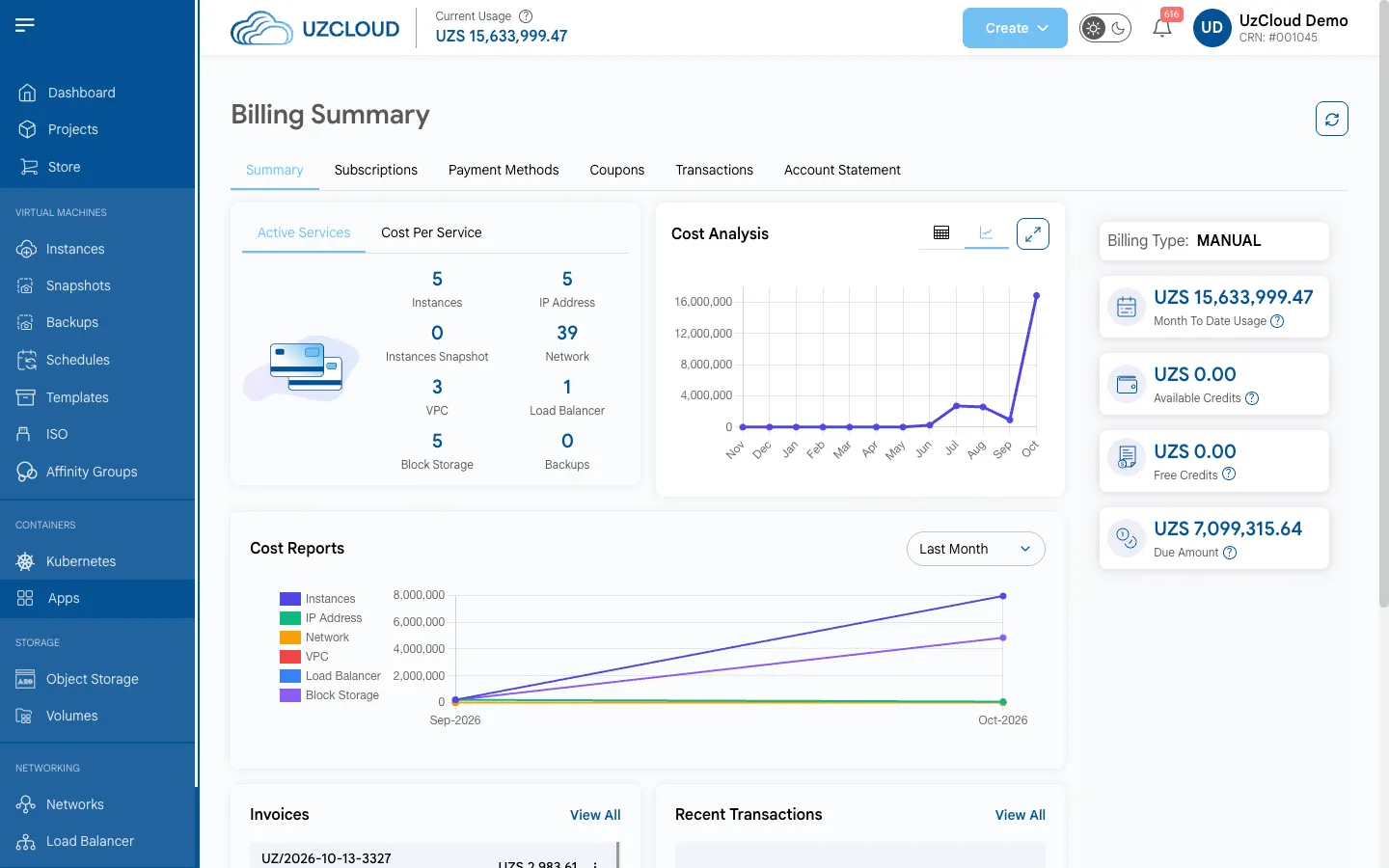
Active Services
- The Active Services tab shows the number of your resources by type: instances, IP addresses, instance snapshots, networks, VPCs, load balancers, block storage and backups.
- The Cost Per Service tab shows the costs by service type.
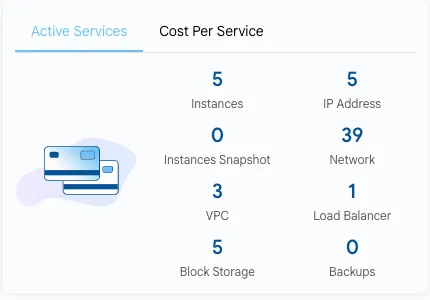
Cost Analysis
- The Cost Analysis chart shows your spending by month. Switch between the table and chart views with the icons above the chart, or expand the chart to full screen.
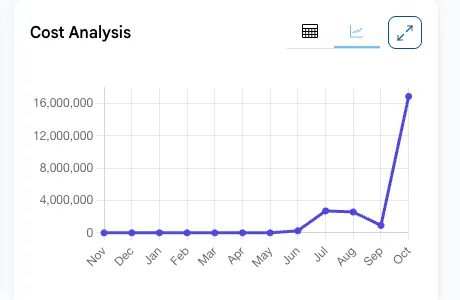
Cost Reports
- The Cost Reports chart shows the spending for each resource type over the selected period (for example, Last Month).
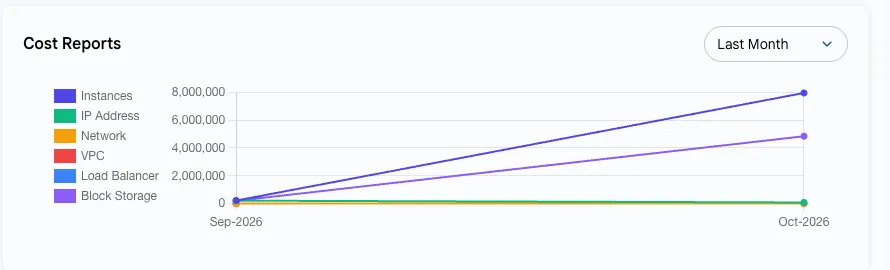
Billing Type and Balance
On the right side of the page:
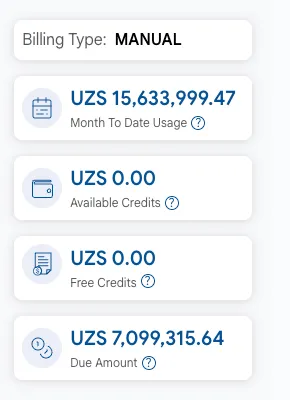
- Billing Type — the billing type of your account.
- Month To Date Usage — the usage since the beginning of the month.
- Available Credits — the credits available on your account.
- Free Credits — the free (bonus) credits.
- Due Amount — the amount to be paid.
Invoices and Recent Transactions
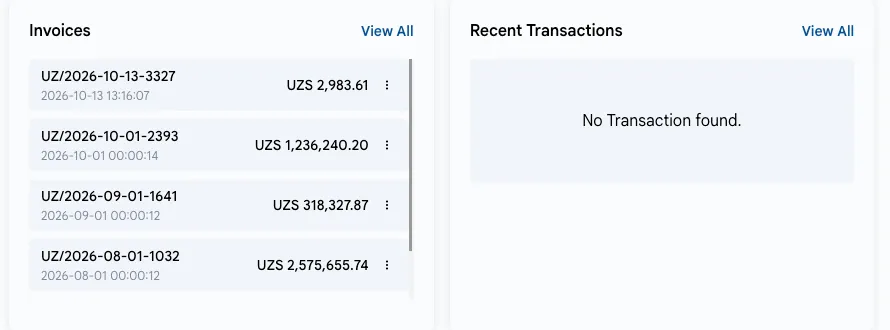
- The Invoices section lists your latest invoices with their number, date and amount. Use the menu (three dots) next to an invoice to see its actions. Click View All to open all invoices on the Account Statement tab.
- The Recent Transactions section lists your latest payments. Click View All to open the Transactions tab.
Conclusion
The Billing Summary page gives you an overview of your spending and balance and quick access to invoices and payments.