Protect Your UzCloud Account
Whoever controls your UzCloud account controls all your VMs, disks and backups. Protect the account just as carefully as the servers.
Enable Two-Factor Authentication
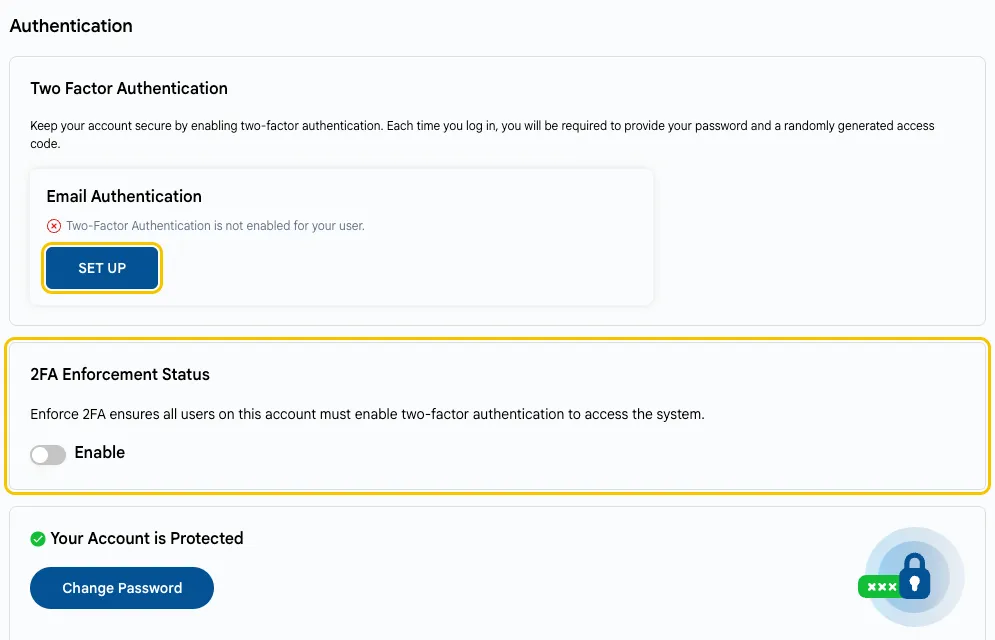
Two-factor authentication (2FA) protects your account even if your password leaks: at each sign-in, you also enter a one-time code sent to your email.
- Open Profile → Authentication and click SET UP in the Email Authentication block.
- If you are the account owner, turn on 2FA Enforcement Status: then all users of the account must enable two-factor authentication to sign in.
See also Profile Setup.
Use a Strong, Unique Password
Use a long password that you don’t use for other services, and store it in a password manager. Change it immediately if you suspect a leak.
Separate Users and Roles
- Do not share one account between employees. Add a separate user for each employee: Profile → Users.
- Give each user only the role they need. For example, an accountant needs billing access, not VM management.
- Remove users who no longer need access, for example, after an employee leaves.
See Profile Setup.
Keep API Tokens and Access Keys Safe
- Do not store API tokens and S3 access keys in code repositories or send them in messengers.
- Give each application its own key, so that you can revoke it without affecting the others.
- Rotate keys regularly and immediately revoke a key that may have leaked. For object storage, see Manage Object Storage.
- Do not make object storage buckets public unless they host public files.
Watch Account Activity
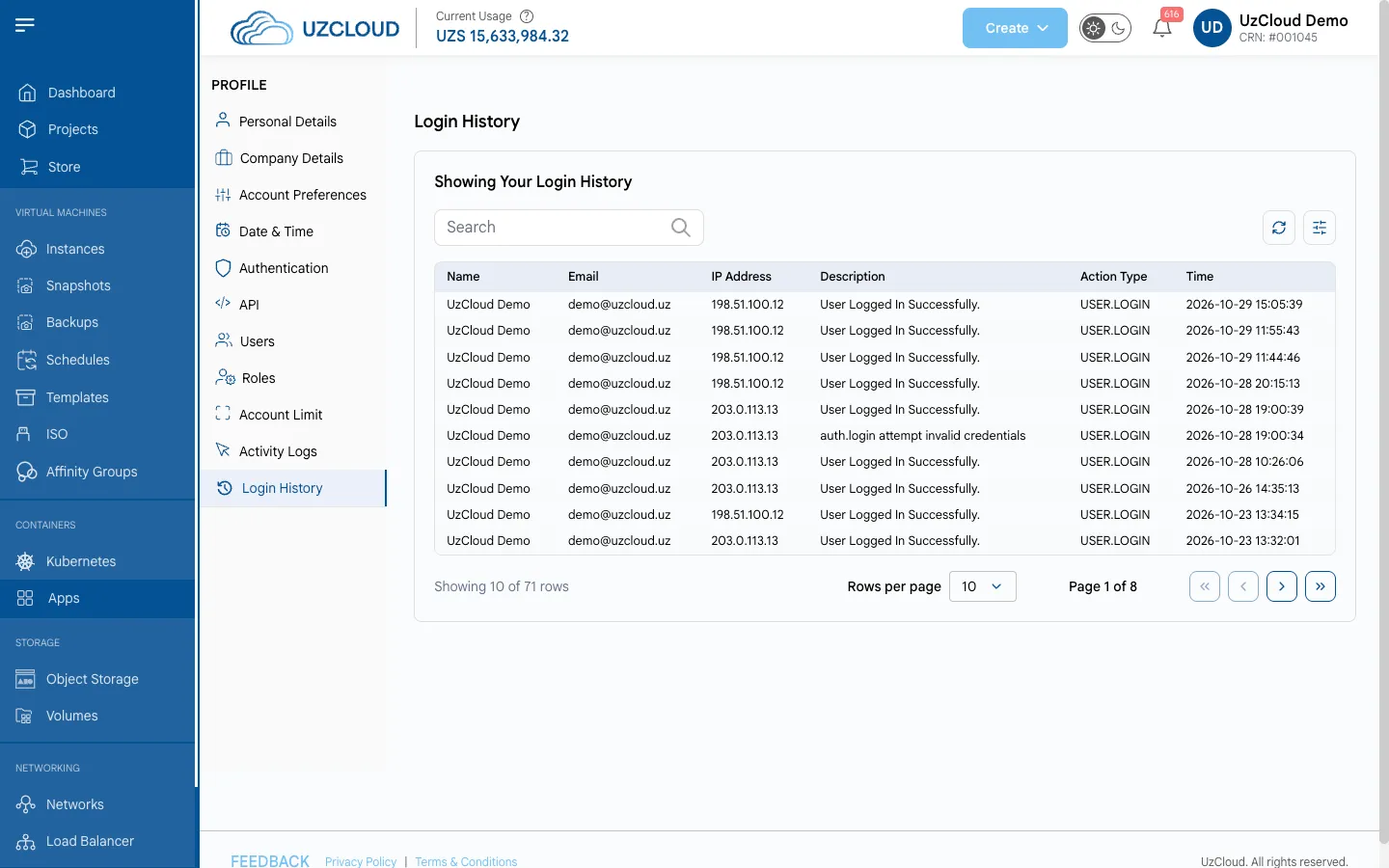
Review the Activity Logs and Login History in your profile regularly. Unknown logins or actions you did not perform are a reason to change your password and contact support.
Conclusion
2FA, separate users with minimal roles and careful handling of keys protect your account and all the resources in it.