Secure SSH Access to Linux VMs
Password guessing over SSH is the most common attack on servers with a public IP address. Bots scan the internet and try thousands of passwords per hour. The best protection is to sign in with SSH keys only.
Step 1. Add an SSH Key
- When you create a VM, add your public SSH key in the Add SSH Key To Your Instance block. See Compute Instance.
- For an existing VM, you can manage keys on the SSH Keys tab of the VM settings. See SSH Keys.
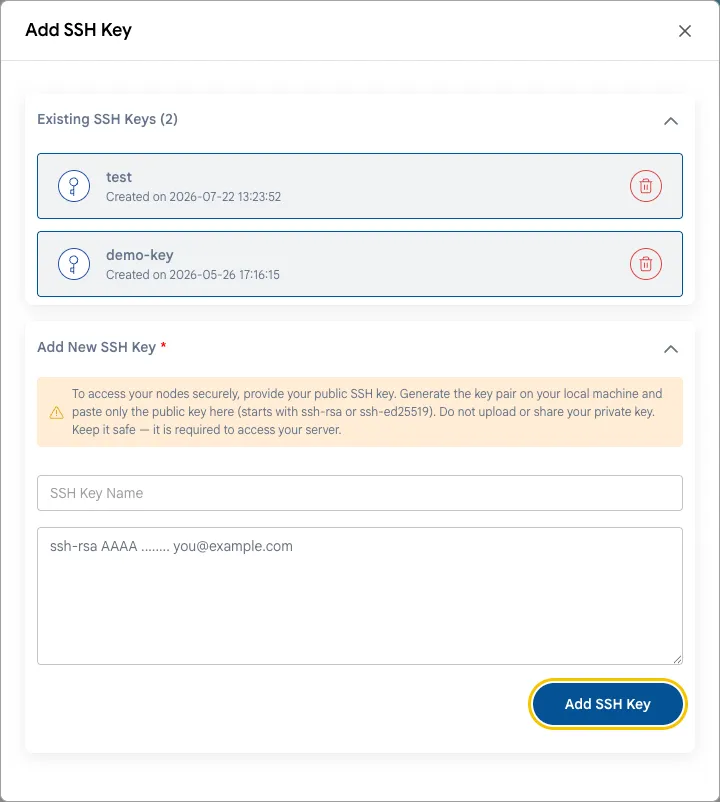
If you don’t have a key yet, create one on your computer:
ssh-keygen -t ed25519The public key is saved to ~/.ssh/id_ed25519.pub. Never share or upload the private key (id_ed25519 without .pub).
Step 2. Disable Password Login and Root Login
Warning
First make sure that you can sign in with the key. Keep the current SSH session open and check the login in a second terminal window. Otherwise, you may lose access to the server. If this happens, use the web console.
-
Create a user with sudo rights, if you sign in as root:
adduser admin
usermod -aG sudo admin    # Ubuntu and Debian
usermod -aG wheel admin   # Rocky, AlmaLinux, RHEL
Copy your key to this user (
~/.ssh/authorized_keys) and check that you can sign in as this user. -
Open the SSH server configuration:
sudo nano /etc/ssh/sshd_config -
Set the following parameters:
PasswordAuthentication no
PermitRootLogin no
On newer distributions, also check the files in
/etc/ssh/sshd_config.d/: a setting there may override the main file. -
Check the configuration and restart the SSH server:
sudo sshd -t && sudo systemctl restart ssh # Ubuntu and Debian sudo sshd -t && sudo systemctl restart sshd # Rocky, AlmaLinux, RHEL -
In a second terminal window, check that you can still sign in with the key.
Step 3. Restrict Who Can Connect
Allow SSH only from your IP addresses or through VPN. See Network Access. Changing the port from 22 to a non-standard one reduces noise from bots in the logs, but it does not replace an IP restriction.
Step 4. Block Password Guessing
Install fail2ban: it blocks IP addresses that repeatedly fail to sign in.
sudo apt install fail2ban                         # Ubuntu and Debian
sudo dnf install epel-release && sudo dnf install fail2ban   # Rocky, AlmaLinux
sudo systemctl enable --now fail2ban
The default settings protect SSH. Check the status with:
sudo fail2ban-client status sshdConclusion
Key-only SSH login with IP restrictions protects your VM from the most common attacks. For Windows VMs, the same principles apply to RDP — see Network Access.