Managing Object Storage
To open an object store, click its name on the Object Storage page. The Object Storage Overview page shows the store details and its buckets.
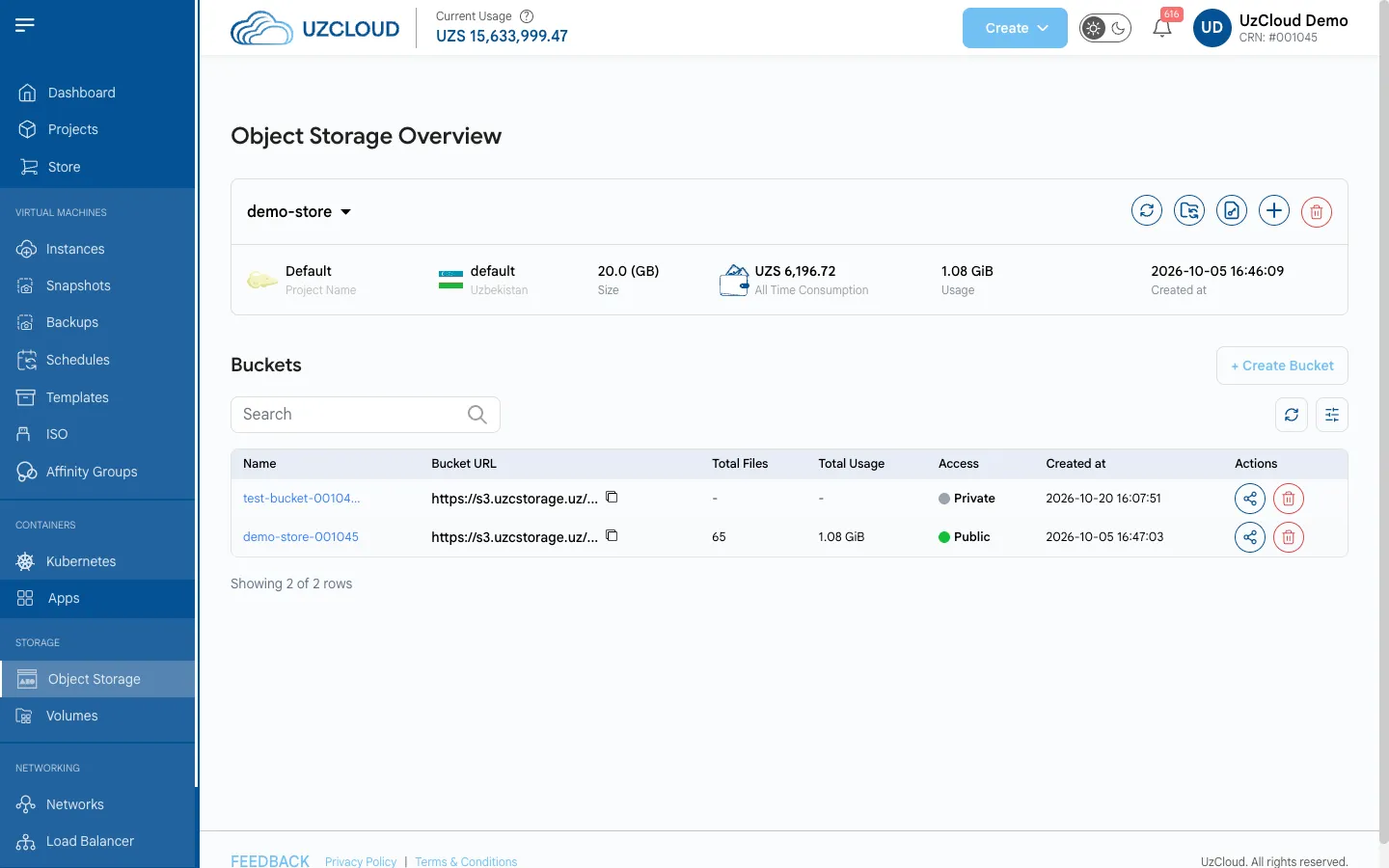
Action Buttons
The store card shows the project, location, size, all-time consumption, usage and creation date. The action buttons are on the right.

- Refresh — reloads the store status and data.
- Sync Buckets — synchronizes the list of buckets with the storage.
- Credentials — shows the S3 endpoint and access keys.
- Upgrade/Downgrade Store — changes the store size.
- Delete Object Storage — permanently deletes the store.
View Credentials
- Click Credentials. The S3 Object Storage Credentials window shows the Region, the S3 endpoint URL (
https://s3.uzcstorage.uz) and your Access Keys.
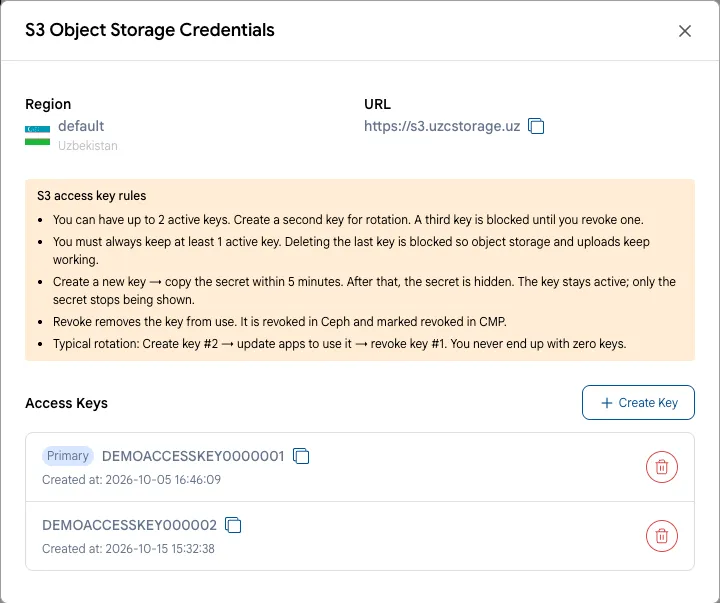
- Access key rules:
- You can have up to 2 active keys. Create a second key for rotation; a third key is blocked until you revoke one.
- At least 1 active key must always remain. Deleting the last key is blocked.
- After you click Create Key, copy the secret key within 5 minutes. After that, the secret is hidden; the key stays active.
- Revoking a key removes it from use.
- Typical rotation: create key #2 → update your applications to use it → revoke key #1.
Resize Object Storage
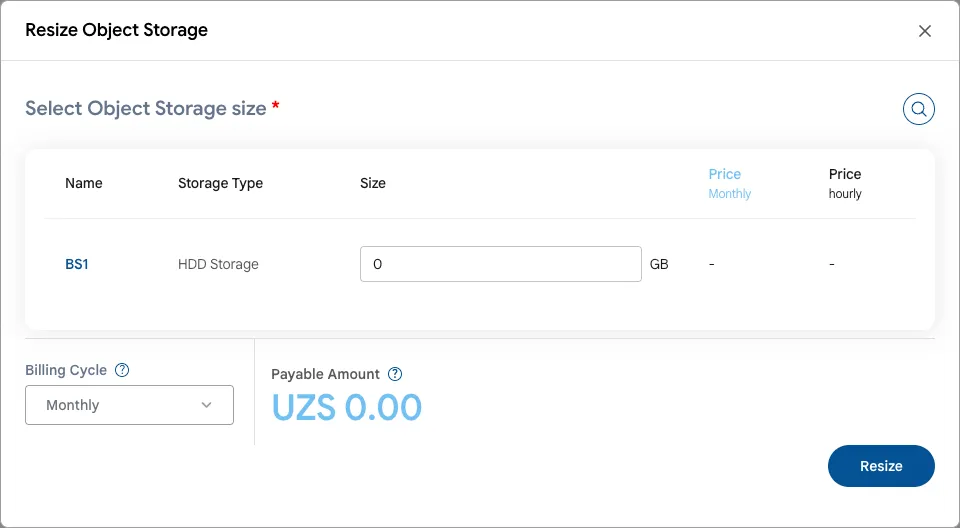
- Click Upgrade/Downgrade Store. In the Resize Object Storage window, enter the new size in GB.
- Choose the Billing Cycle, check the Payable Amount and click Resize.
Create a Bucket
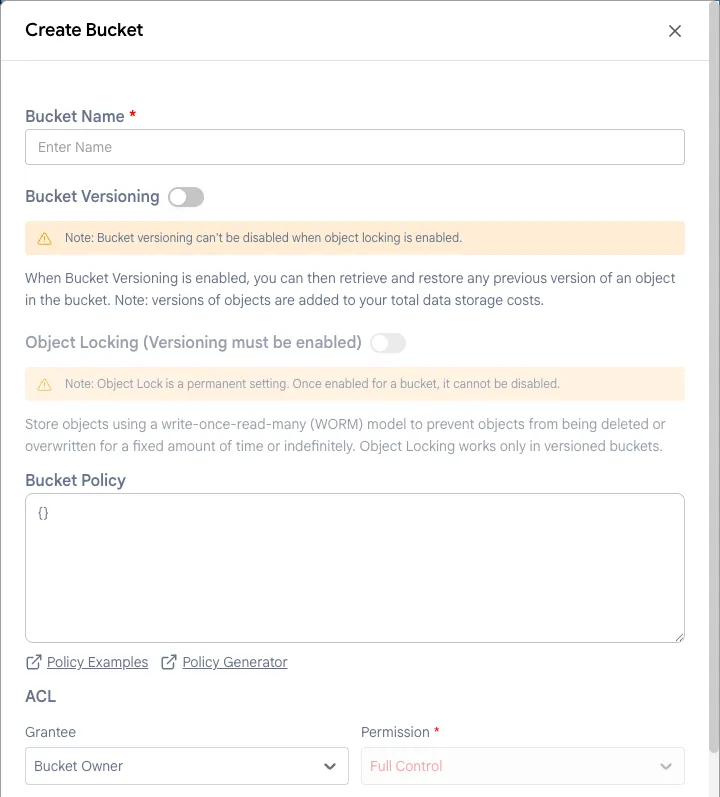
- In the Buckets section, click + Create Bucket.
- Enter a Bucket Name.
- Turn on Bucket Versioning if needed: you can then retrieve and restore any previous version of an object in the bucket.
- Turn on Object Locking to store objects using a write-once-read-many (WORM) model. Objects then cannot be deleted or overwritten for a fixed period or indefinitely.
- Optionally, set a Bucket Policy in JSON format (see Policy Examples and Policy Generator) and the ACL permissions.
- Click Create.
Note
- Object Locking works only in versioned buckets.
- Object Lock is a permanent setting: once enabled for a bucket, it cannot be disabled, and versioning can no longer be turned off.
- Object versions are added to your total data storage costs.
Bucket Public Access
- The buckets table shows the name, bucket URL, total files, total usage, access (Public or Private) and creation date.
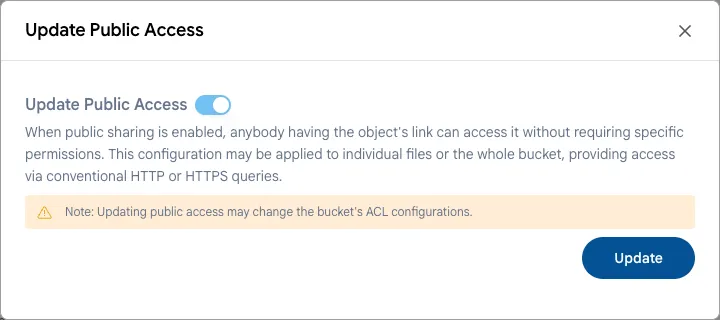
- To change public access, click the share icon in the bucket row (or Share Bucket on the bucket page), turn Update Public Access on or off and click Update.
Warning
When public access is enabled, anyone with an object’s link can access it without any permissions. Updating public access may change the bucket’s ACL configuration.
Bucket Overview
- Click a bucket name to open the Bucket Overview page. It shows the total files, bucket URL, usage, creation date and access type.
- The action buttons let you Refresh the data, Share Bucket, Update Bucket and delete the bucket.
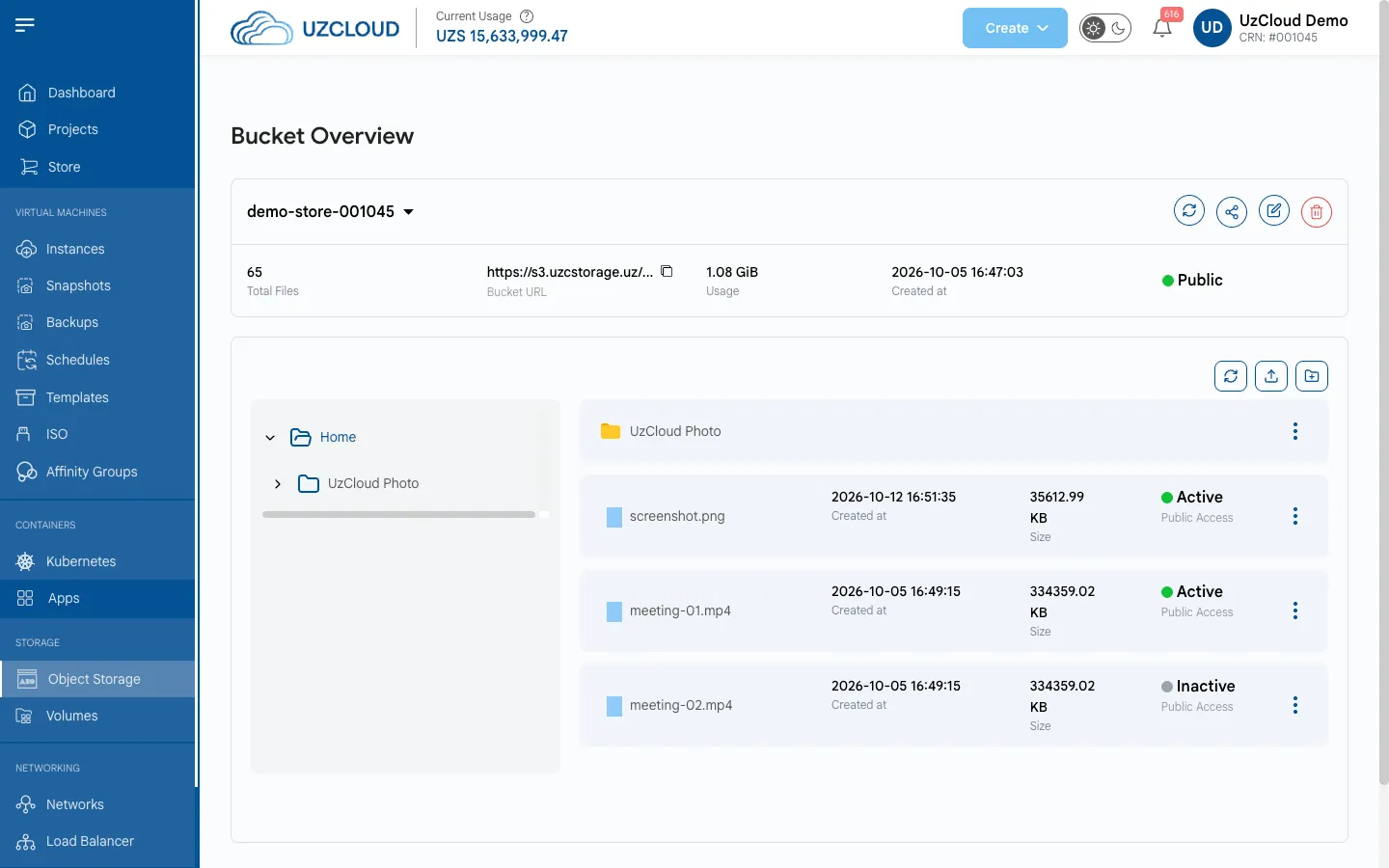
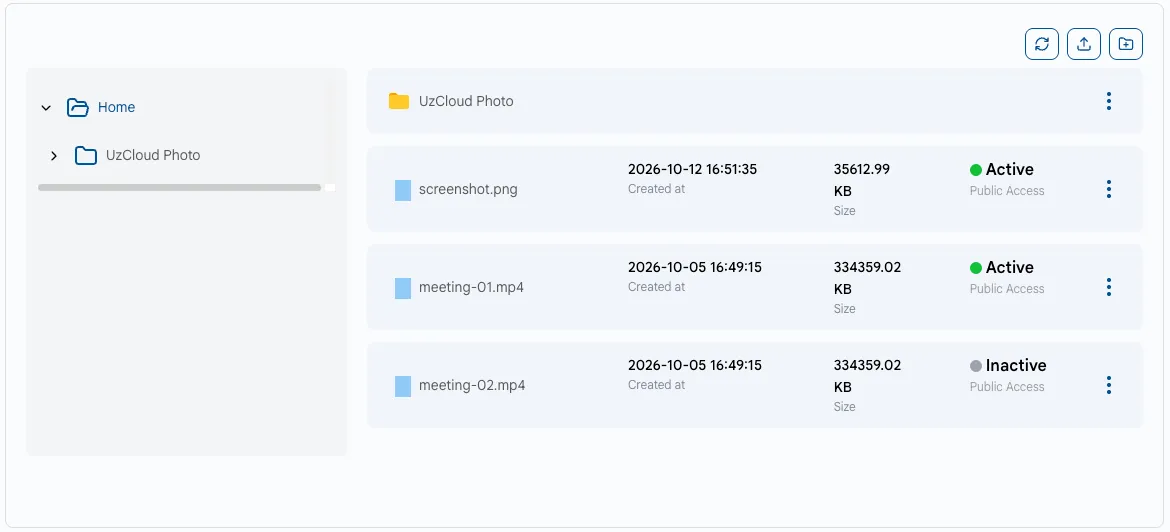
- In the file manager, you can browse folders, Upload Files and Create Folder. The menu (three dots) next to each file opens the actions for it. Each file shows its creation date, size and public access status.
Conclusion
By following this guide, you can manage your object storage: get access keys, resize the store, create buckets and control their access. For further assistance, refer to the UzCloud documentation or reach out to support.