Connect with SSH in UzCloud
You can manage your instance using a terminal and SSH. This allows you to connect securely and perform administrative tasks remotely. You can either use an SSH client or connect directly via your terminal. This guide provides step-by-step instructions to connect to your cloud instance using an SSH client or terminal for secure remote access.
Connecting to Your Instance via SSH
Before connecting to your instance, ensure you have the following information:
-
IP Address: shown on the instance card and on the Virtual Machine Overview page (Public IP).
-
Default Username: Depending on the operating system (
root,ubuntu,ec2-user). -
Authentication Method:
- SSH Key (recommended) — Ensure you have access to your private key file.
- Password — shown in the Provisioning Password field on the Virtual Machine Overview page if you do not use an SSH key.

Instance Information
- The IP address of your instance is displayed on the instance card. Click the copy icon next to it to copy it.
- Click the instance name to open the Virtual Machine Overview page, which shows the public IP, SSH port, username and password.
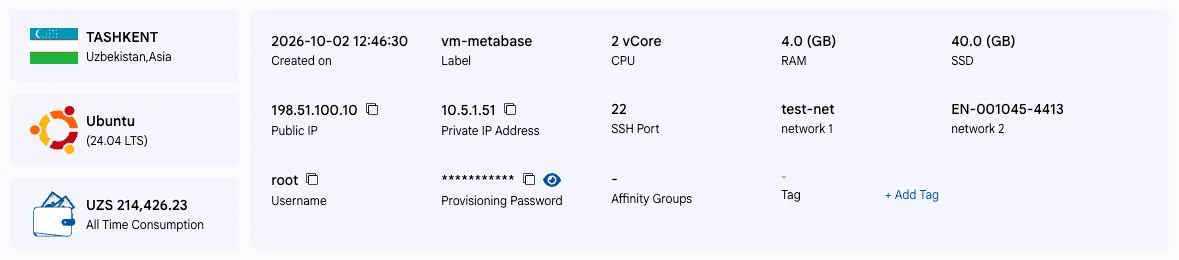
Connecting to Your Instance
-
Open a terminal:
- On Windows: Use Command Prompt, PowerShell, or Git Bash.
- On macOS or Linux: Use the built-in terminal.
-
Use the appropriate SSH command to connect:
-
If you are using an SSH Key:
ssh -i /path/to/your/private/key [username]@[ip_address] -
If you are using a password:
ssh [username]@[ip_address]
-
-
Enter your password if prompted. With a password:
ssh root@192.168.1.1
Conclusion
By following this guide, you can securely connect to your cloud instance using SSH. Whether you use an SSH key or a password, SSH provides a reliable and secure method for remote access and management. For further assistance, refer to the UzCloud documentation or reach out to support.