Console Access for Virtual Machines
The Console Access feature lets you work with your virtual machine (VM) directly in the browser, as if you were sitting in front of it. It is useful for troubleshooting startup issues, configuring the system, or accessing the VM when SSH or RDP is unavailable.
- Click the Console Access icon in the quick actions of the instance card or on the Virtual Machine Overview page. The console opens in a new browser tab.
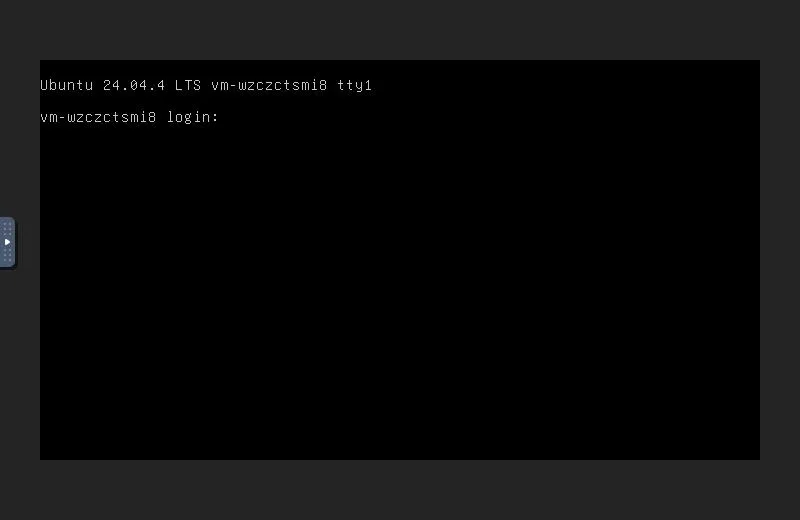
Console Toolbar
To open the toolbar, click the handle on the left edge of the console window. The toolbar contains three buttons:
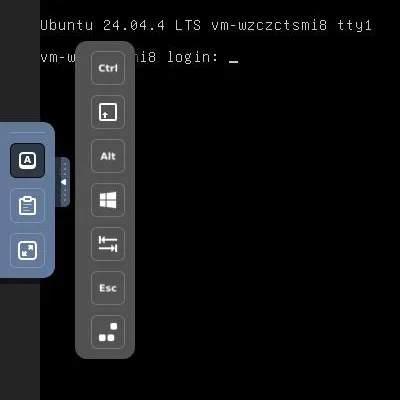
- Show extra keys — opens a panel with special keys:
- Toggle Ctrl, Toggle Shift, Toggle Alt and Toggle Windows — press and hold the corresponding key in the VM;
- Send Tab and Send Escape — send the Tab or Esc key;
- Send Ctrl-Alt-Del — send the Ctrl+Alt+Delete combination.
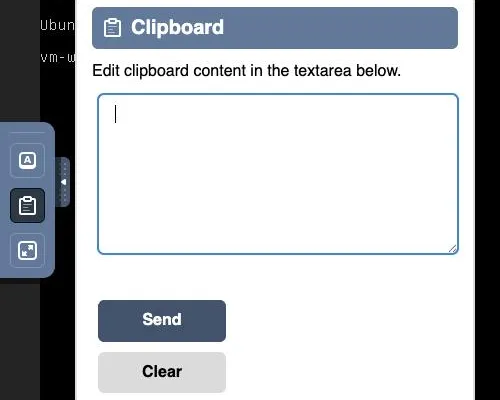
- Clipboard — opens a field for transferring text to the VM: paste the text into the field and click Send. Clear clears the field.
- Full screen — expands the console to full screen.
Managing Your VM
The console lets you perform any task that requires direct access to the machine, for example installing software, changing configuration, or troubleshooting the operating system — without external tools like SSH or RDP.
Conclusion
The Console Access feature provides a convenient way to work with your virtual machines directly in the browser. For further assistance, refer to the UzCloud documentation or reach out to support.