Keep Your Operating System Up to Date
Most successful attacks exploit vulnerabilities that already have a fix. Install updates regularly, and make sure your operating system still receives security patches from its vendor.
Step 1. Make a Backup
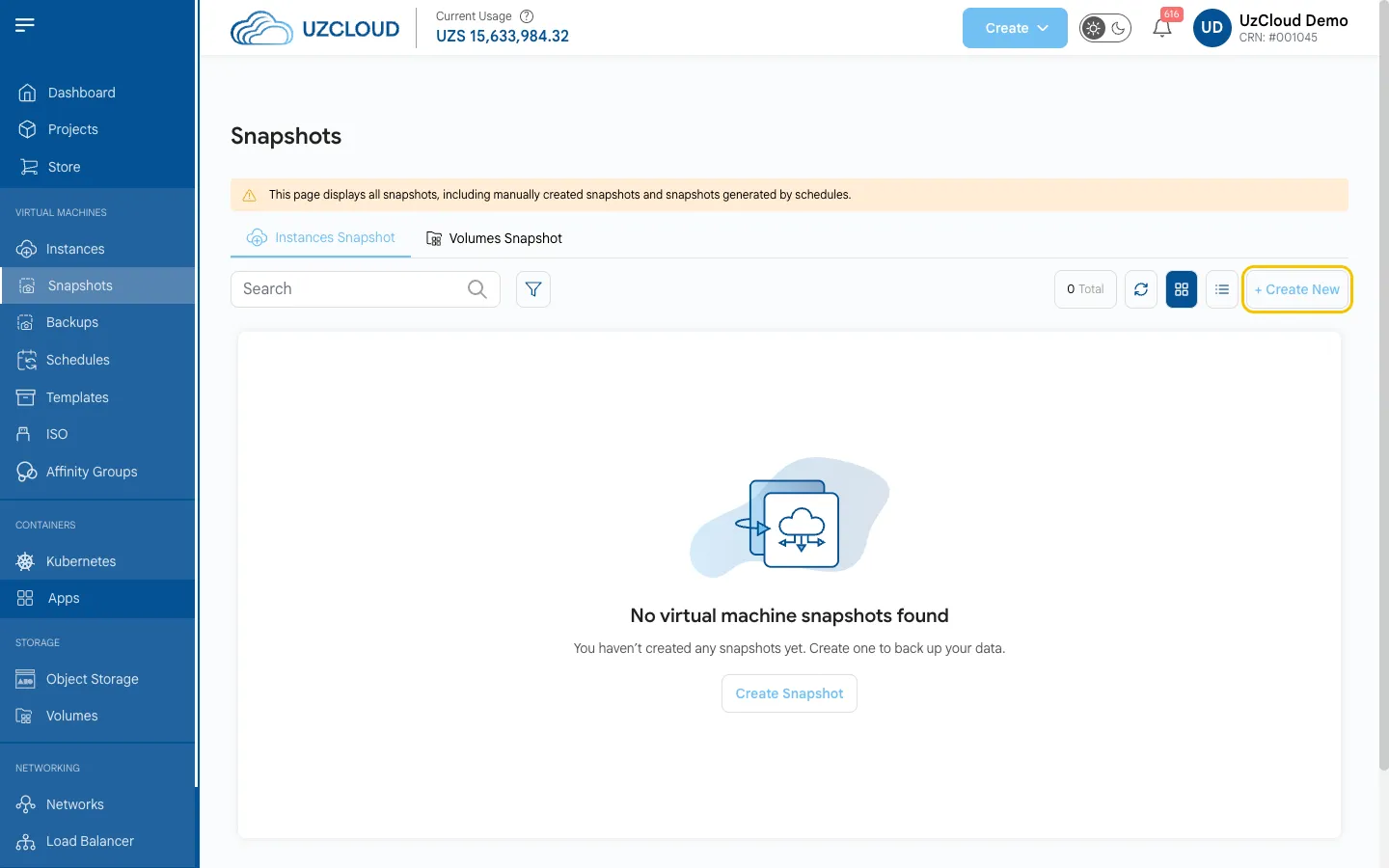
Before any update, take a snapshot of the VM in the UzCloud console. See Create Instance Snapshot.
Warning
A snapshot of a running database is not always consistent. Back up databases and important configuration files separately (for example, with pg_dump or mysqldump). A backup is only reliable once you have tested restoring it.
Step 2. Install Updates
Connect to the VM over SSH or open the web console, then run the command for your distribution.
Ubuntu and Debian:
sudo apt update && sudo apt upgrade -yRocky Linux, AlmaLinux, RHEL, Oracle Linux, CentOS Stream:
sudo dnf update -ySUSE Linux Enterprise / openSUSE:
sudo zypper refresh && sudo zypper patchWindows Server: open Settings → Windows Update and click Check for updates, or run sconfig and select Install updates.
Step 3. Reboot if Required
If the kernel or system libraries were updated, reboot the VM. Until you reboot, the old kernel keeps running and the vulnerability is not fixed.
Check whether a reboot is required:
# Ubuntu and Debian: the file exists if a reboot is required
ls /var/run/reboot-required

# Rocky Linux, AlmaLinux, RHEL, Oracle Linux
sudo dnf needs-restarting -r

# SUSE
sudo zypper needs-rebooting
Reboot:
sudo rebootYou can also reboot the VM with the Reboot button on the VM page in the console. After the reboot, check the running kernel version:
uname -rStep 4. Check That Your OS Is Still Supported
Find out your distribution and version:
cat /etc/os-releaseCheck the end-of-life date on the vendor’s website. The following versions no longer receive free security updates:
- CentOS 7 and CentOS 8 (including CentOS Stream 8);
- Ubuntu 20.04 and earlier;
- Debian 11 and earlier;
- Windows Server 2012 R2 and earlier.
On these systems, apt upgrade or dnf update does not fix new vulnerabilities. What to do:
- Move to a supported version (recommended). Create a new VM with a current OS (for example, Ubuntu 24.04 or 26.04, Debian 12 or 13, Rocky Linux 9 or AlmaLinux 9 — all of them are available in UzCloud), move your application, data and settings to it, and keep the old VM for a couple of weeks in case you need to roll back.
- If you cannot move yet, subscribe to extended support from the vendor (for example, Ubuntu Pro), close the server from the internet and allow access only through VPN — see Network Access.
Note
The same applies to applications. Old versions of PHP, Node.js, Python or databases (for example, PHP 7.x or PostgreSQL 11 and earlier) do not get fixes from the distribution repository, even if the OS itself is supported. Check application versions too.
Step 5. Enable Automatic Security Updates
Ubuntu and Debian:
sudo apt install unattended-upgrades
sudo dpkg-reconfigure --priority=low unattended-upgrades
Rocky Linux, AlmaLinux, RHEL, Oracle Linux:
sudo dnf install dnf-automatic
sudo systemctl enable --now dnf-automatic-install.timer
Automatic updates install patches, but they do not reboot the server. Once a month, check that the updates were installed and reboot the VM at a convenient time.
Conclusion
Regular updates and a supported OS close most known vulnerabilities. Combine them with SSH hardening and network restrictions to protect your VMs.