Block Storage Volumes
Block storage volumes are additional disks that you attach to virtual machines to get more storage for your data. After attaching a volume, format and mount it inside the VM.
Creating a Volume
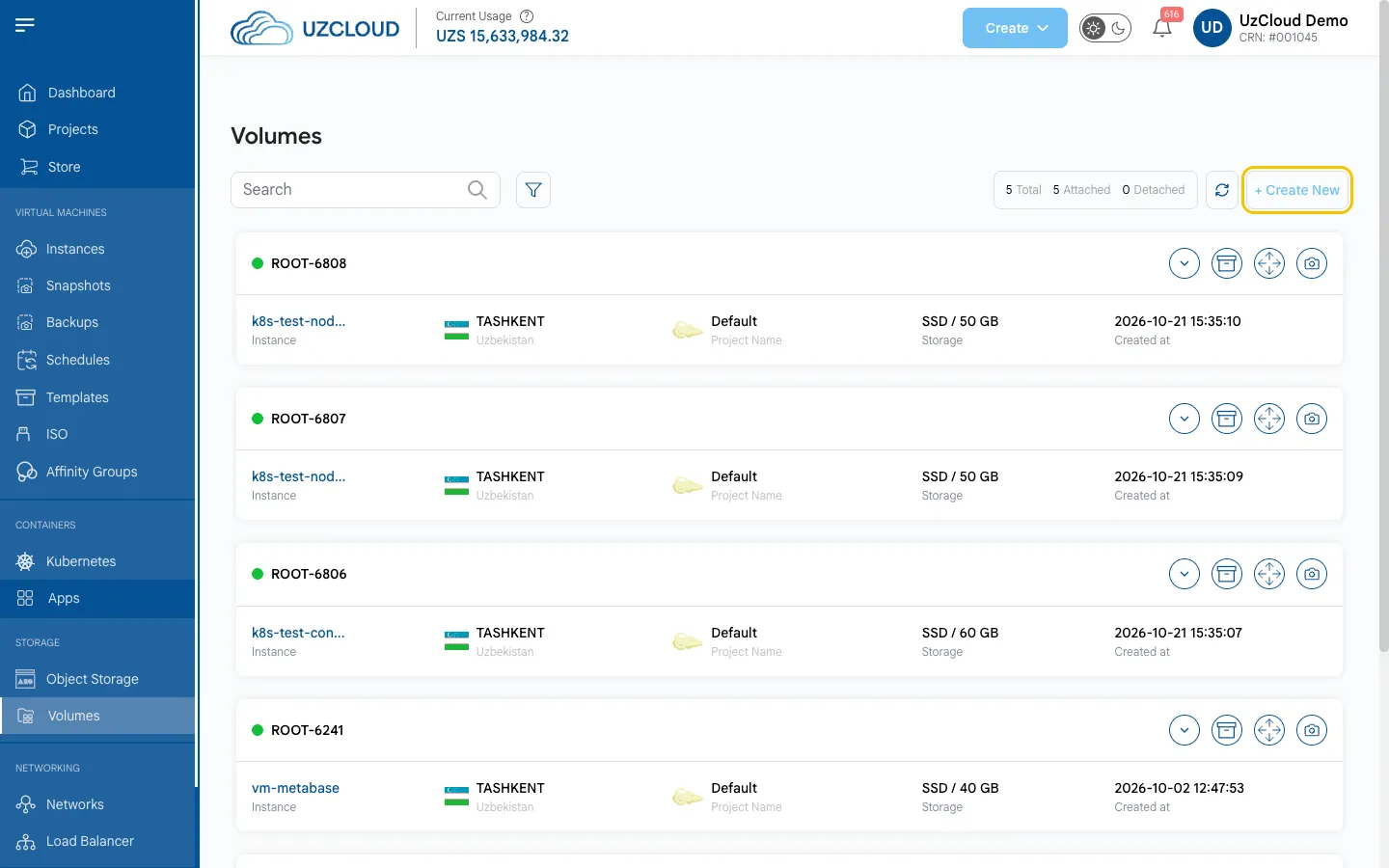
- From the left-hand menu, click Volumes. The page shows all volumes with their status (Attached or Detached), the instance, location, project, storage type and size.
- Click + Create New. The Create Volumes page opens.
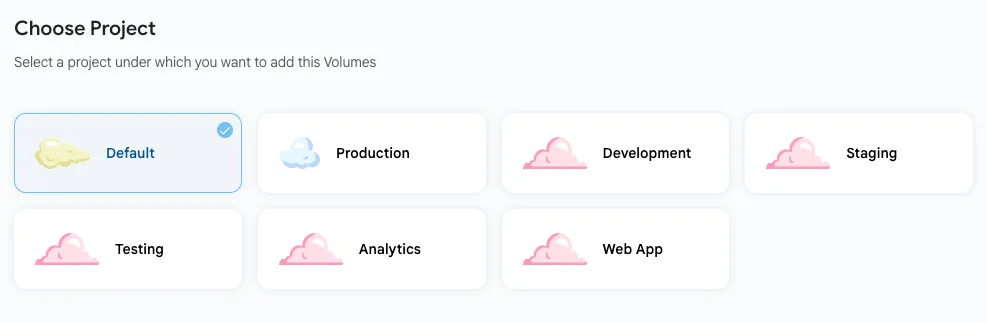
Choose a Project
- Select the project to which the volume will belong.
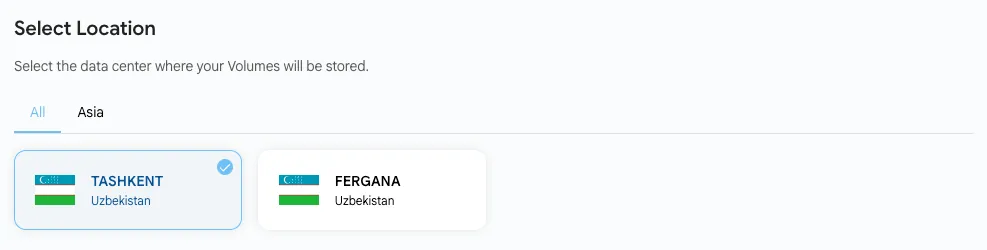
Choose a Location
- Select the data center where the volume will be stored: TASHKENT or FERGANA.
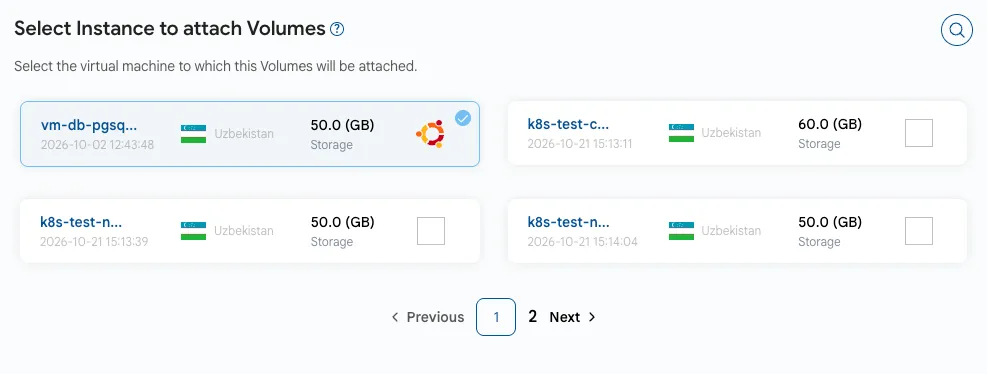
Choose an Instance
- Select the virtual machine to which the volume will be attached. A volume can be created only for an existing instance; if you don’t have one, click Create Instances.
Choose the Volume Size
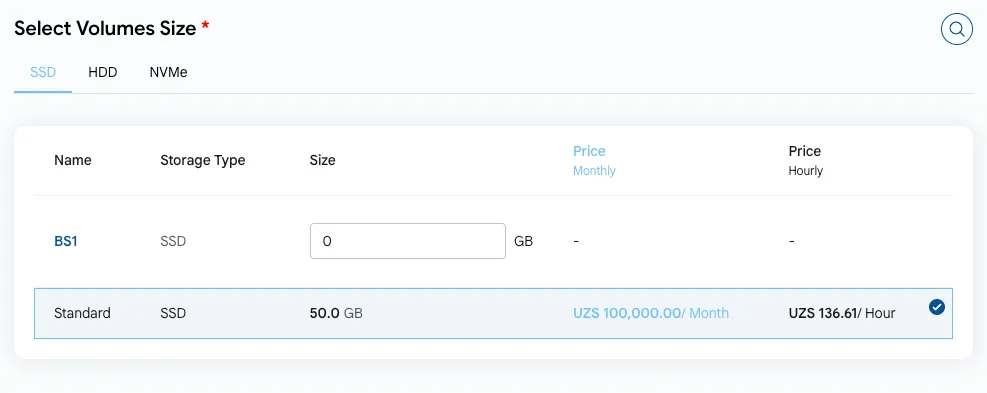
- In Select Volumes Size, select the disk type (SSD, HDD or NVMe) and an offering. You can choose a preset size or enter your own size in GB.
Choose a Name
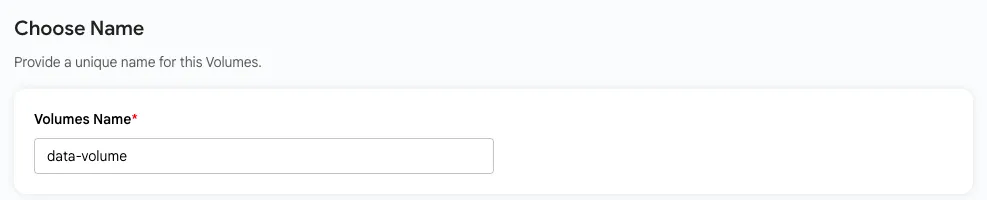
- Enter a unique Volumes Name.
Create the Volume
- At the bottom of the page, choose the Billing Cycle (Monthly or Yearly) and check the Price Summary.
- Click Review & Deploy to create the volume.

Conclusion
By following this guide, you can create volumes in UzCloud and attach them to your virtual machines. You can also manage the volumes of an instance on the VM Settings tab of the instance. For further assistance, refer to the UzCloud documentation or reach out to support.