Instance Overview for UzCloud
The Virtual Machine Overview page provides a detailed summary of your virtual machine (VM) and quick actions for managing it.
Quick Actions in the Instance List
- On the Instances page, click the three-dot button on the instance card to show the quick actions: console access, stop, reboot, and delete.

Action Buttons
- Click the instance name to open the Virtual Machine Overview page. The action buttons are located on the right side of the status bar.
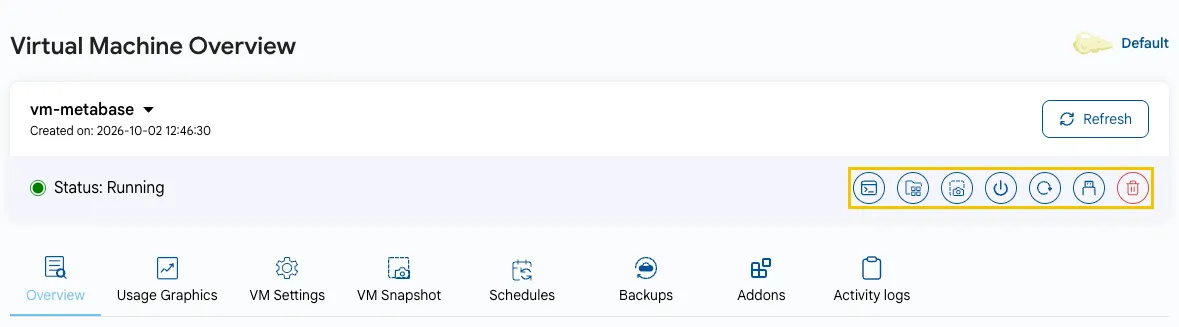
- Refresh — refreshes the instance status and page information.
- Console Access — opens a web console to interact with the VM directly.
- VM Volumes Snapshots — shows the volume snapshots of the VM and lets you take a new one.
- VM Snapshot — takes a snapshot of the whole VM.
- Stop — shuts down the virtual machine (when the VM is stopped, the button starts it).
- Reboot — restarts the instance.
- Attach ISO To This Virtual Machine — mounts an ISO image to the VM for installation or recovery.
- Delete — deletes the instance permanently.
The page also contains tabs: Overview, Usage Graphics, VM Settings, VM Snapshot, Schedules, Backups, Addons and Activity logs.
Instance Information

- Instance name and Created on — the name of the instance and its creation date and time. Use the arrow next to the name to switch between instances.
- Status — the current state of the VM (for example, Running).
Instance Details
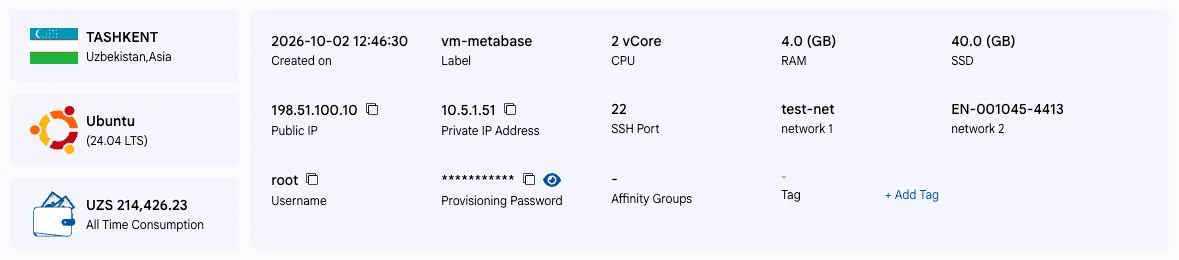
- Location — the data center of the instance.
- Operating System — the OS installed on the VM.
- All Time Consumption — the total cost of the VM since it was created.
- Label — the name of the VM.
- CPU, RAM and SSD — the number of vCores, the amount of memory and the disk size.
- Public IP and Private IP Address — the public and internal IP addresses (use the copy icon to copy them).
- SSH Port — the port for SSH connections.
- network 1, network 2… — the networks the VM is connected to.
- Username and Provisioning Password — the default login credentials. Click the eye icon to show the password.
- Affinity Groups — the affinity group of the VM, if any.
- Tag — tags for organizing resources. To add a tag, click + Add Tag, enter a key and a value, and save.
Resource Usage
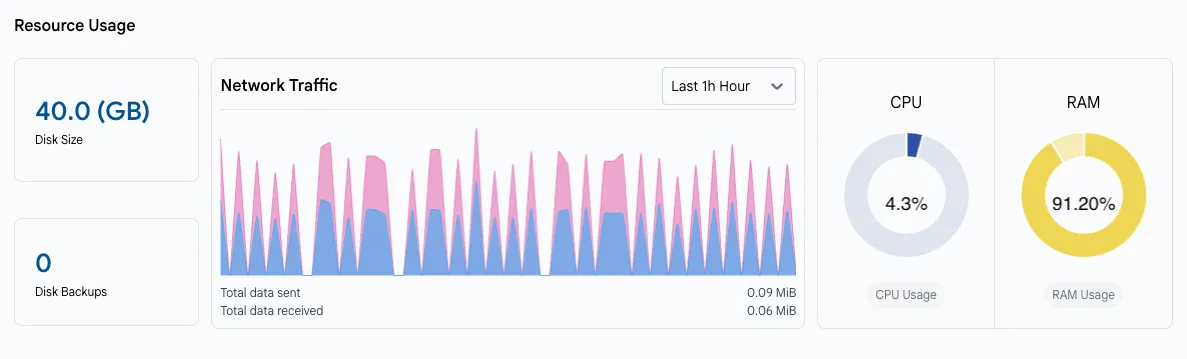
- Disk Size and Disk Backups — the disk size and the number of disk backups.
- Network Traffic — sent and received traffic for the selected period (by default, the last hour).
- CPU and RAM — current CPU and memory usage in percent.
Conclusion
The Virtual Machine Overview page gives a complete view of the VM configuration and lets you quickly manage its state. For further assistance, refer to the UzCloud documentation or reach out to support.