Change VM Plan
You can upgrade the resources of your VM — the number of vCPUs and the amount of memory — when your workload grows.
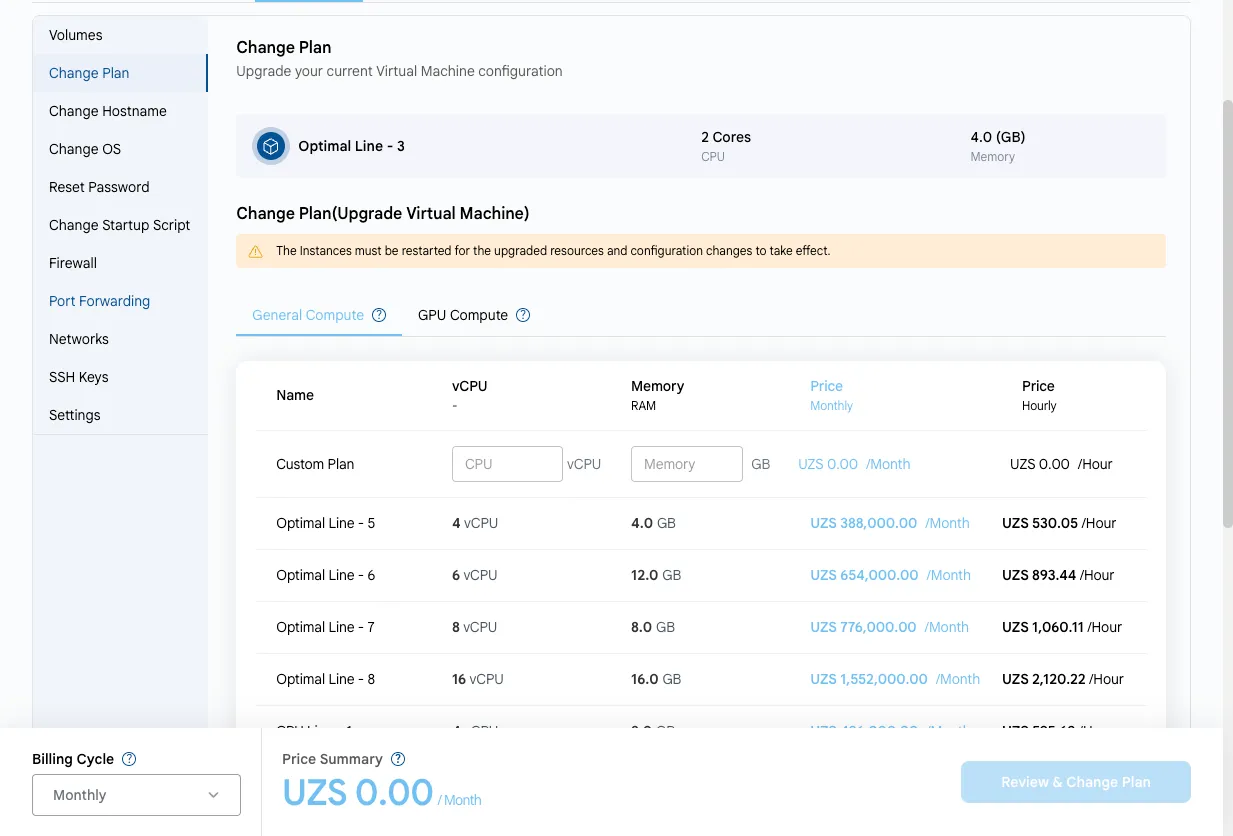
- On the VM Settings tab, select Change Plan. The current plan is shown at the top.
- Select a new plan on the General Compute or GPU Compute tab, or set your own configuration in the Custom Plan row. Only plans larger than the current one are available.
Warning
Downgrading is not supported. The instance must be restarted for the upgraded resources and configuration changes to take effect.
- Choose the Billing Cycle at the bottom of the page, check the Price Summary and click Review & Change Plan.
Conclusion
Changing the plan lets you scale the VM resources when your workload grows. Plan the change for a time when a restart will not affect your users.