VPC Network Overview
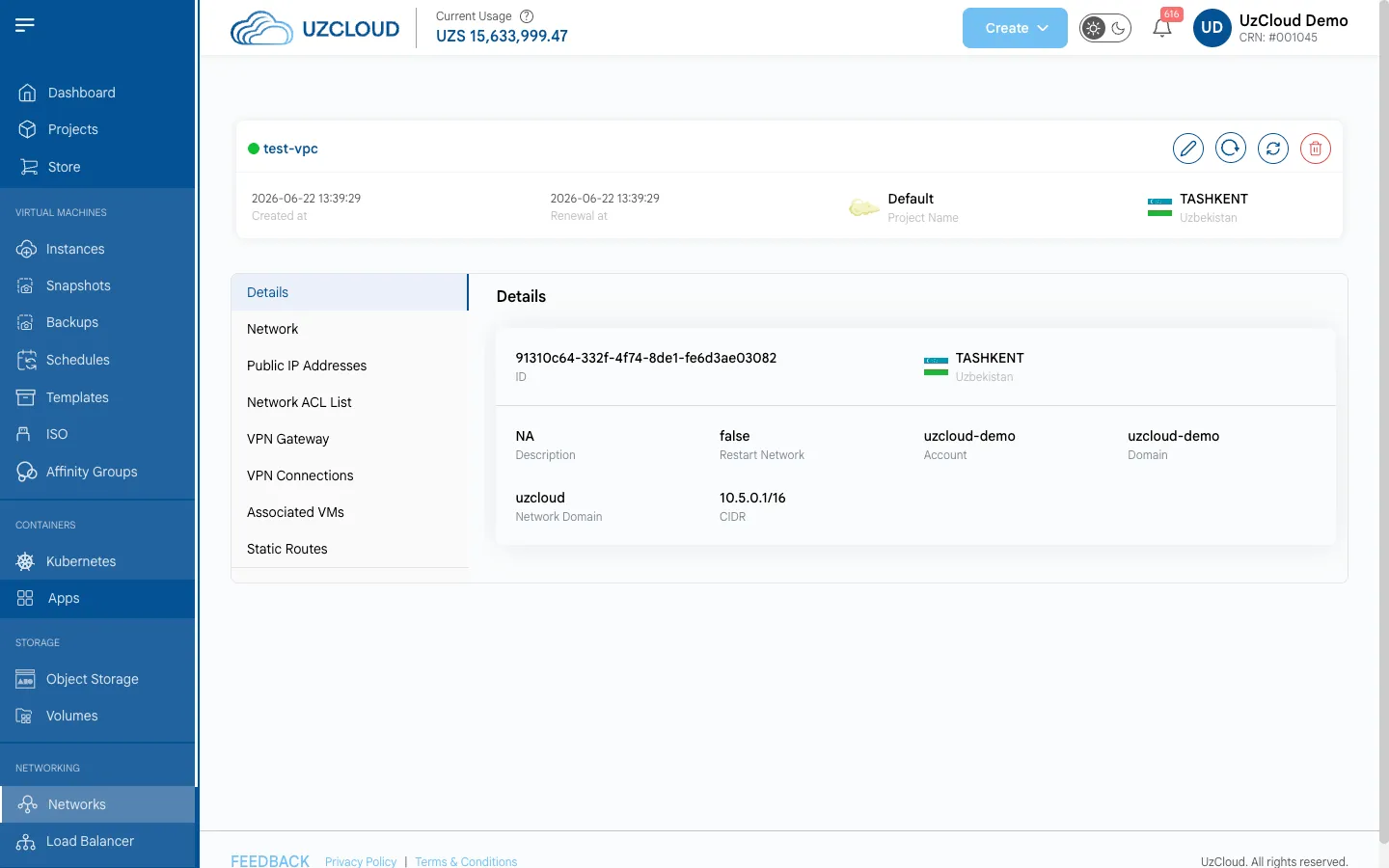
To open a VPC, click its name on the VPC Network tab of the Networks page. The VPC page shows its creation and renewal dates, project and location. The tabs on the left give access to the VPC settings.
Action Buttons
The action buttons are in the upper-right corner of the VPC card:
- Update vpc — changes the VPC name and description.
- Restart — restarts the VPC network.
- Refresh — reloads the VPC data.
- Delete — deletes the VPC.
Details
The Details tab shows the main VPC parameters.
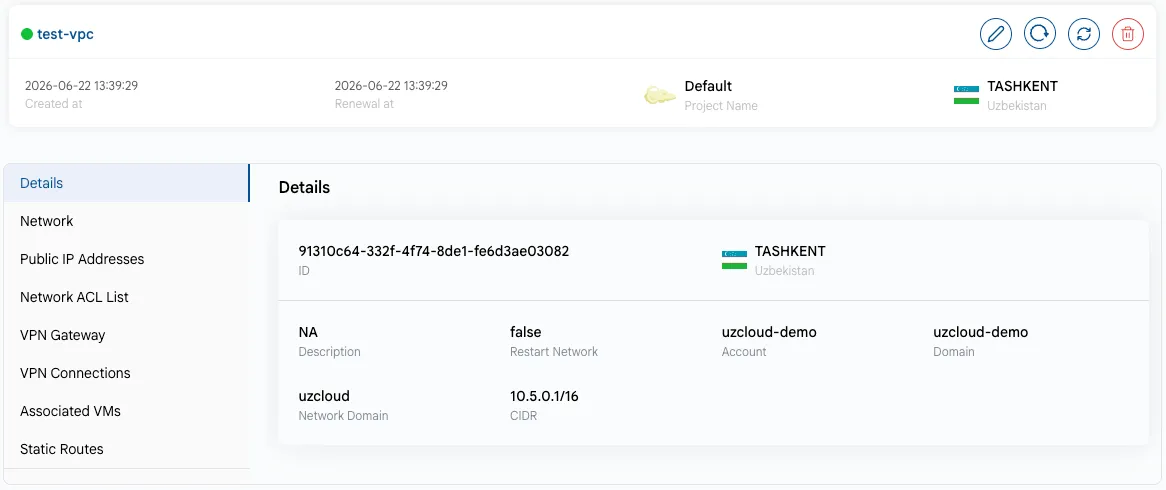
- ID — the VPC identifier.
- Location — the data center of the VPC.
- Description — the VPC description.
- Restart Network — whether the network needs to be restarted to apply changes (true/false).
- Account and Domain — the account and domain that own the VPC.
- Network Domain — the DNS domain for internal communication within the VPC.
- CIDR — the VPC address space.
VPC Tabs
- Network — the networks (tiers) created inside the VPC.
- Public IP Addresses — the public IP addresses of the VPC.
- Network ACL List — the access control lists for VPC networks.
- VPN Gateway — the site-to-site VPN gateway of the VPC.
- VPN Connections — the site-to-site VPN connections.
- Associated VMs — the VMs connected to the VPC.
- Static Routes — the static routes of the VPC (see below).
Static Routes
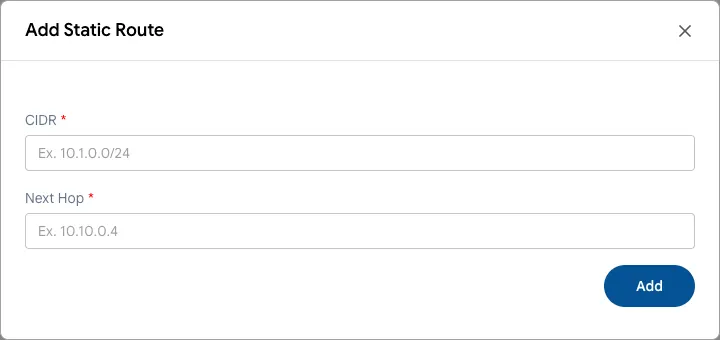
Static routes direct traffic for a given address range to a specified next hop.
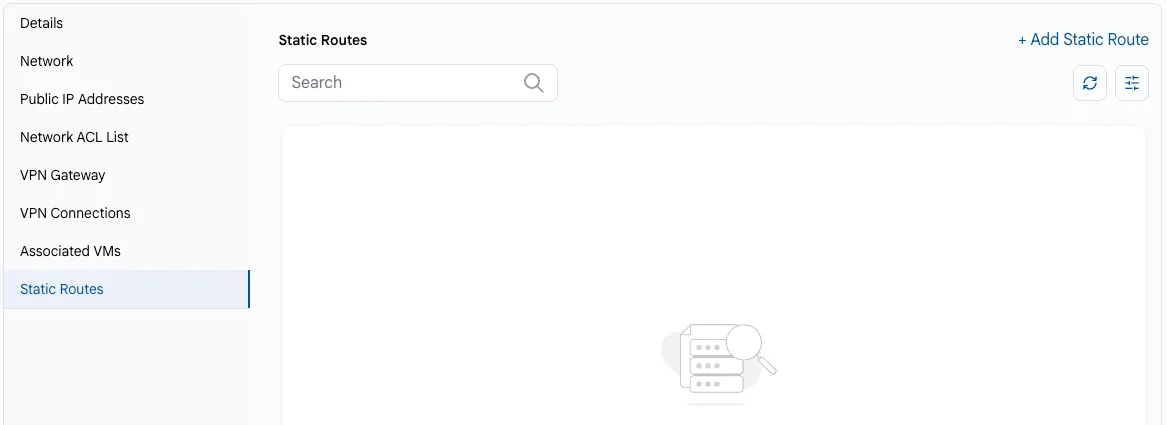
- On the Static Routes tab, click + Add Static Route.
- Enter the destination CIDR and the Next Hop address, then click Add.
Conclusion
The VPC page provides essential details about your virtual private cloud and access to all its settings: networks, IP addresses, ACLs, VPN and routes.