ISO Image
An ISO image is a disk image file that contains an exact copy of a file system. In UzCloud, you can import your own ISO image to install custom operating systems or tools on a virtual machine.
Importing an ISO Image
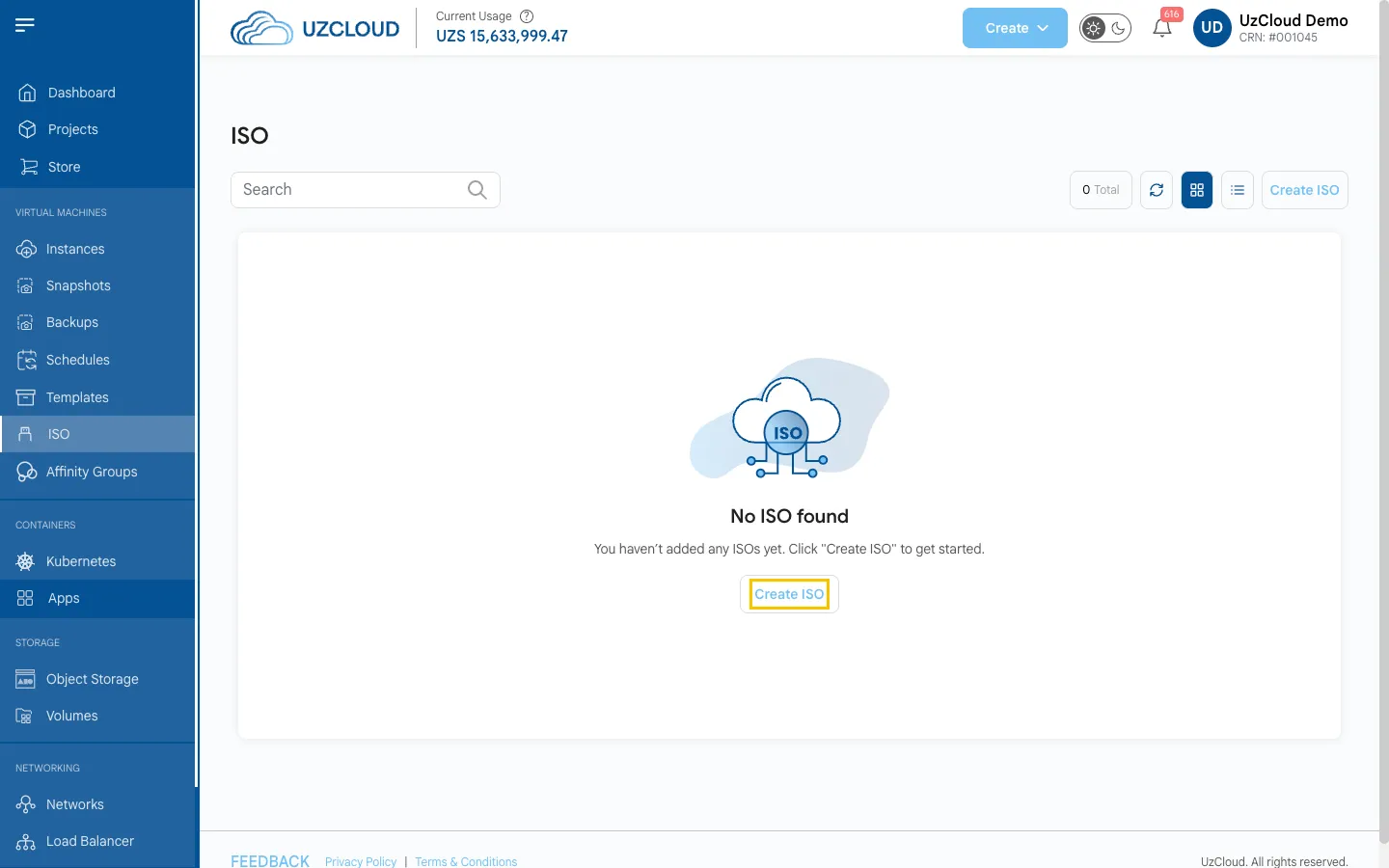
- From the left-hand menu, click ISO. The page shows your ISO images.
- Click Create ISO. The Create ISO page opens.
- Select the project to which the ISO will belong.
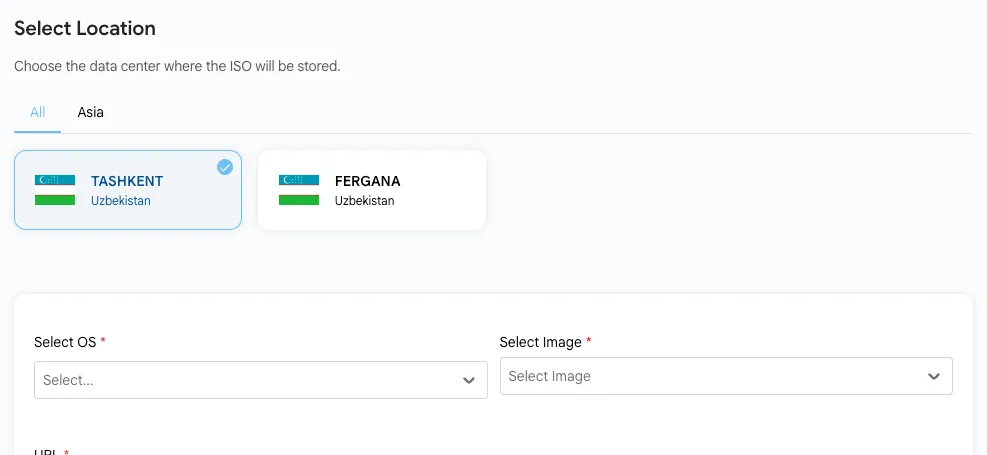
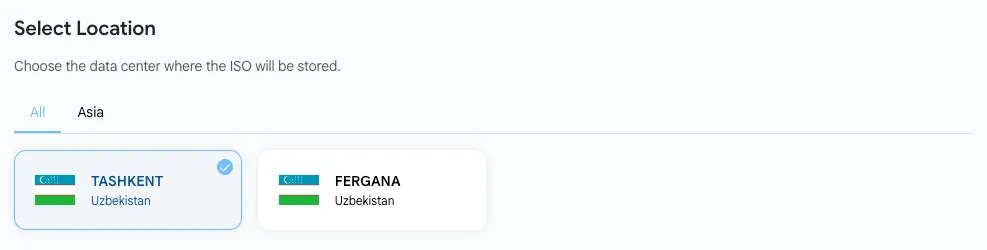
- Select the location where the ISO will be stored.
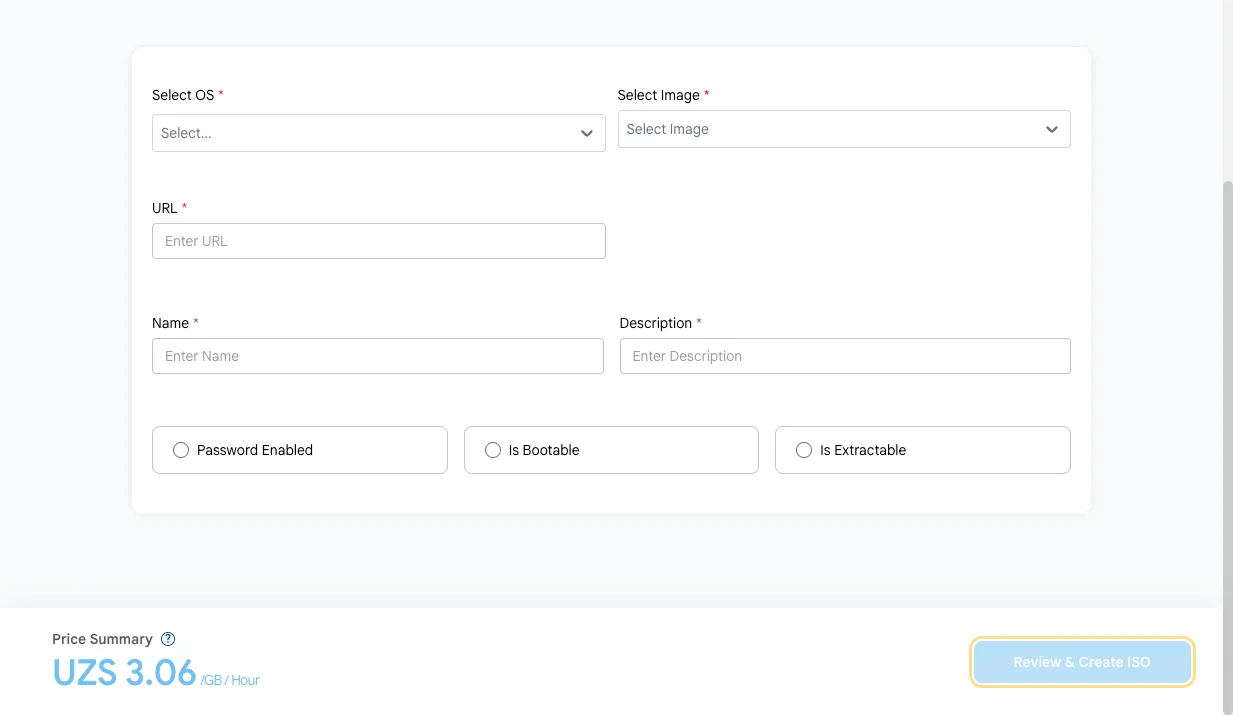
ISO Details
- Select OS — the operating system of the ISO image.
- Select Image — the image type.
- URL — a link to the ISO file that will be imported.
- Name and Description — a name and a short description of the ISO.
Optional settings:
- Password Enabled — the image supports setting a password.
- Is Bootable — the VM can boot from this ISO (for example, to install an OS).
- Is Extractable — the ISO can be downloaded (extracted) after import.
Check the Price Summary (the cost of storing the ISO is calculated per GB per hour) and click Review & Create ISO.
Tip
To attach an ISO to a virtual machine, click Attach ISO To This Virtual Machine on the instance page.
Conclusion
ISO images let you install any operating system or tools on your virtual machines. For further assistance, refer to the UzCloud documentation or reach out to support.